How to manage product card color?
2 min read
On this page
In this article, we’ll show you how to easily change the colors of different elements in your product card. Let’s get started!
1. Understanding how color scheme works
By default, the colors of elements in the theme are controlled by the color scheme you selected under Theme settings > Colors > General > Color scheme.
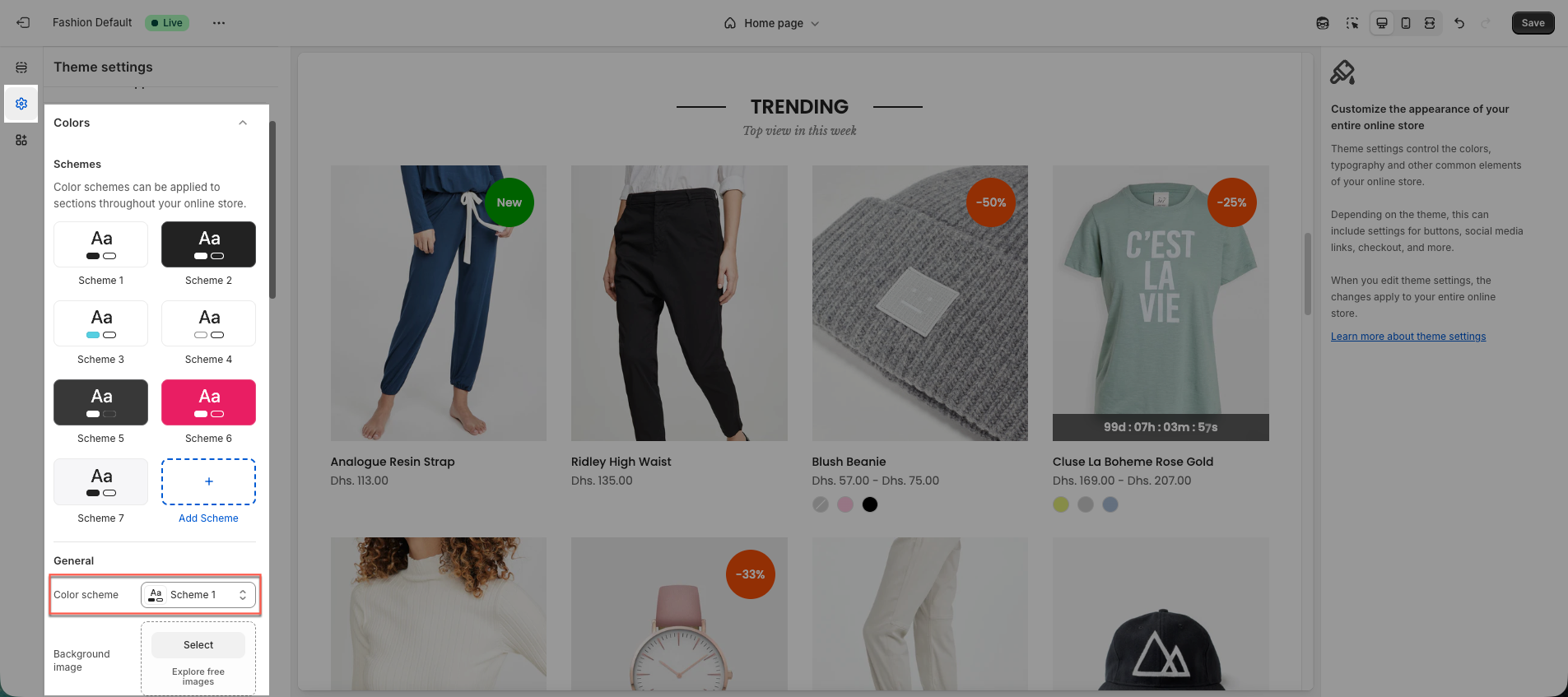
This means all elements using the same scheme will display colors according to its settings. When you change any color within that scheme, all sections using it will automatically update their colors as well.
If you prefer to adjust colors for a specific section without affecting others, enable the Display colors by section option.
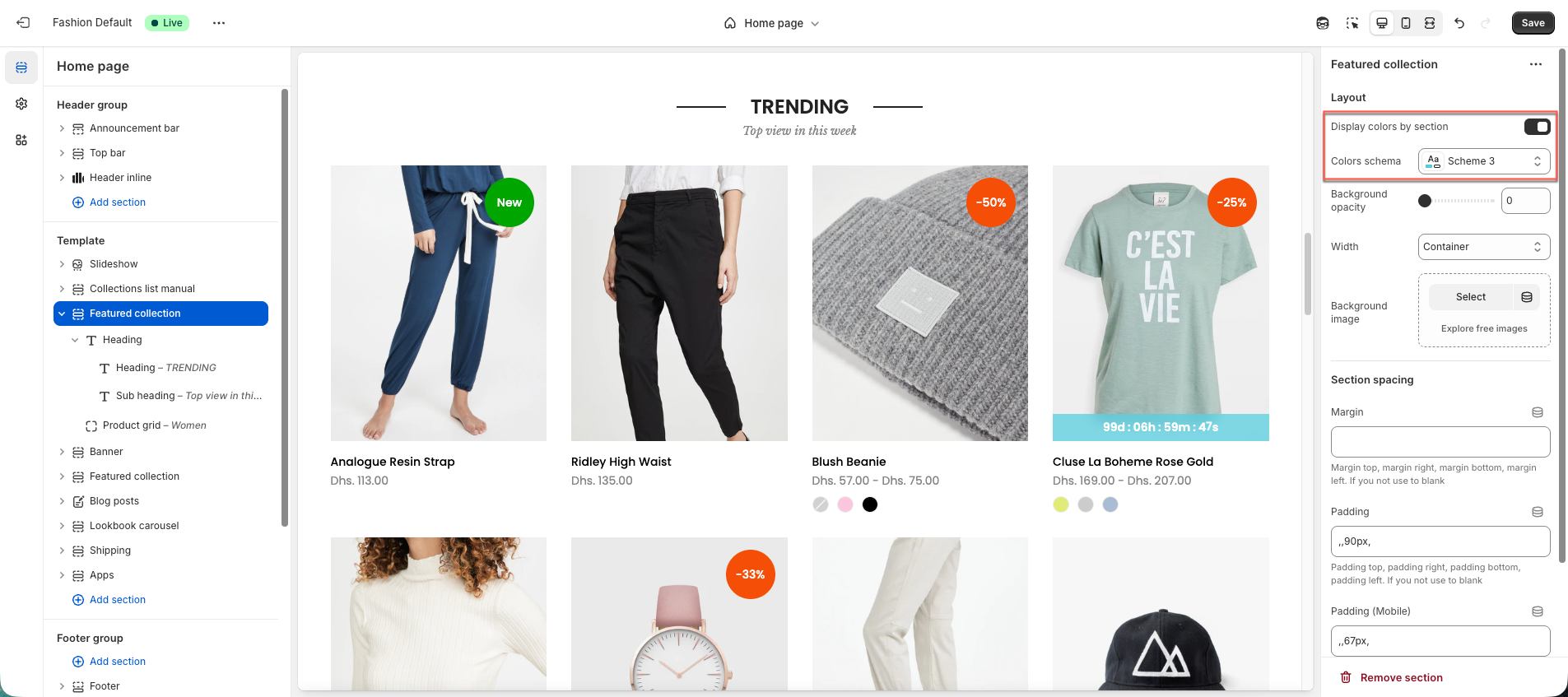
This allows you to assign a different color scheme to individual sections, so any color changes will only apply to that section, without impacting the rest of your page.
2. Practical example
Next, let’s go through an example to help you understand how to change the colors in a product card.
There are several sections in the theme that use a product card structure. In this example, we’ll use the Featured Collection section. The process will be similar for other sections with the same layout.
2.1. Display colors by section is not enabled
You’ll notice that Display colors by section is currently not enabled, which means this section is using the default color scheme.
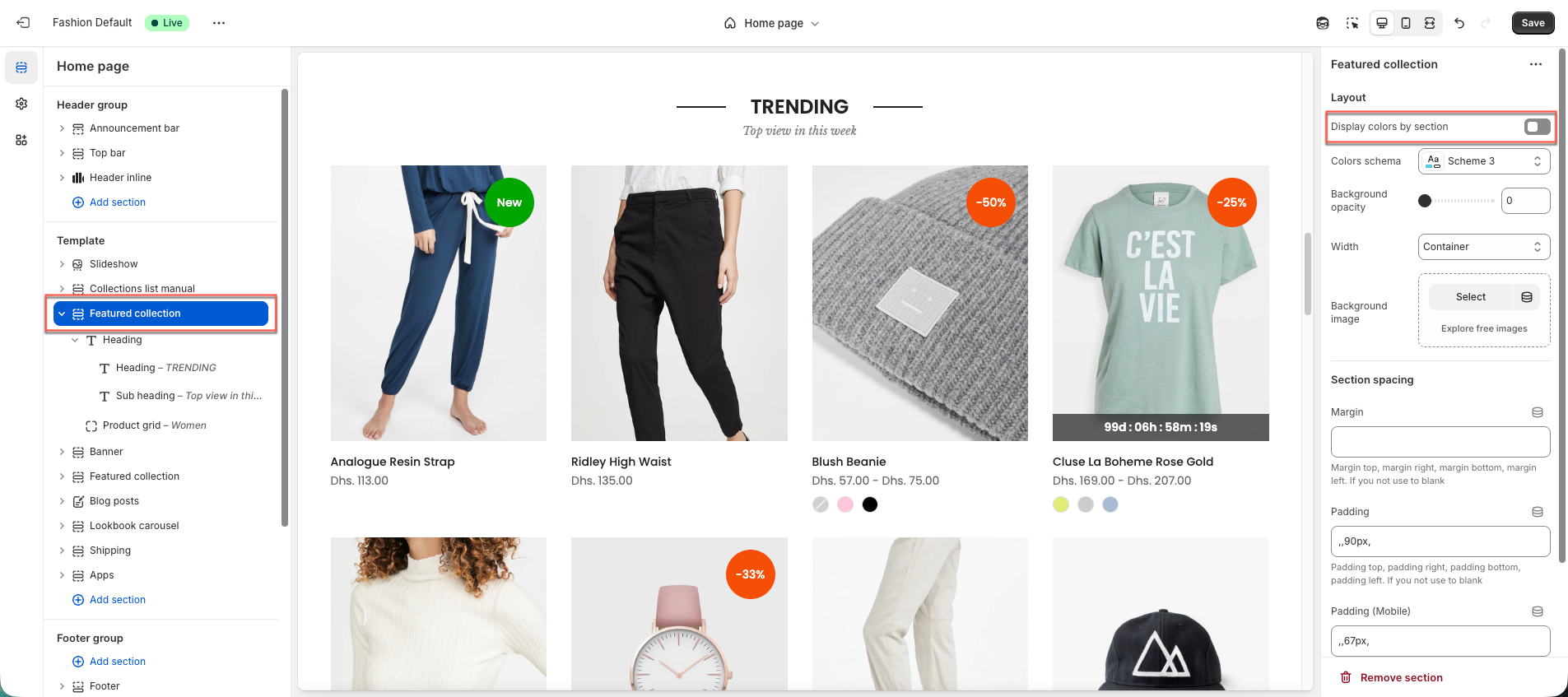
To change the colors, go to Theme settings > Colors > General > Color scheme to check which scheme is being used, then you can:
Adjust the colors of the current scheme, or
Switch to a different scheme.
Within the color scheme, you can edit colors for multiple elements such as: product title, price, button, etc.
2.2. Display colors by section is enabled
When the Display colors by section option is enabled, you can select and apply a separate color scheme for each section instead of using a single global scheme for the entire page.
Any color changes made within a specific scheme will not affect other sections that are not using the same scheme.
2.3. Colors for badges
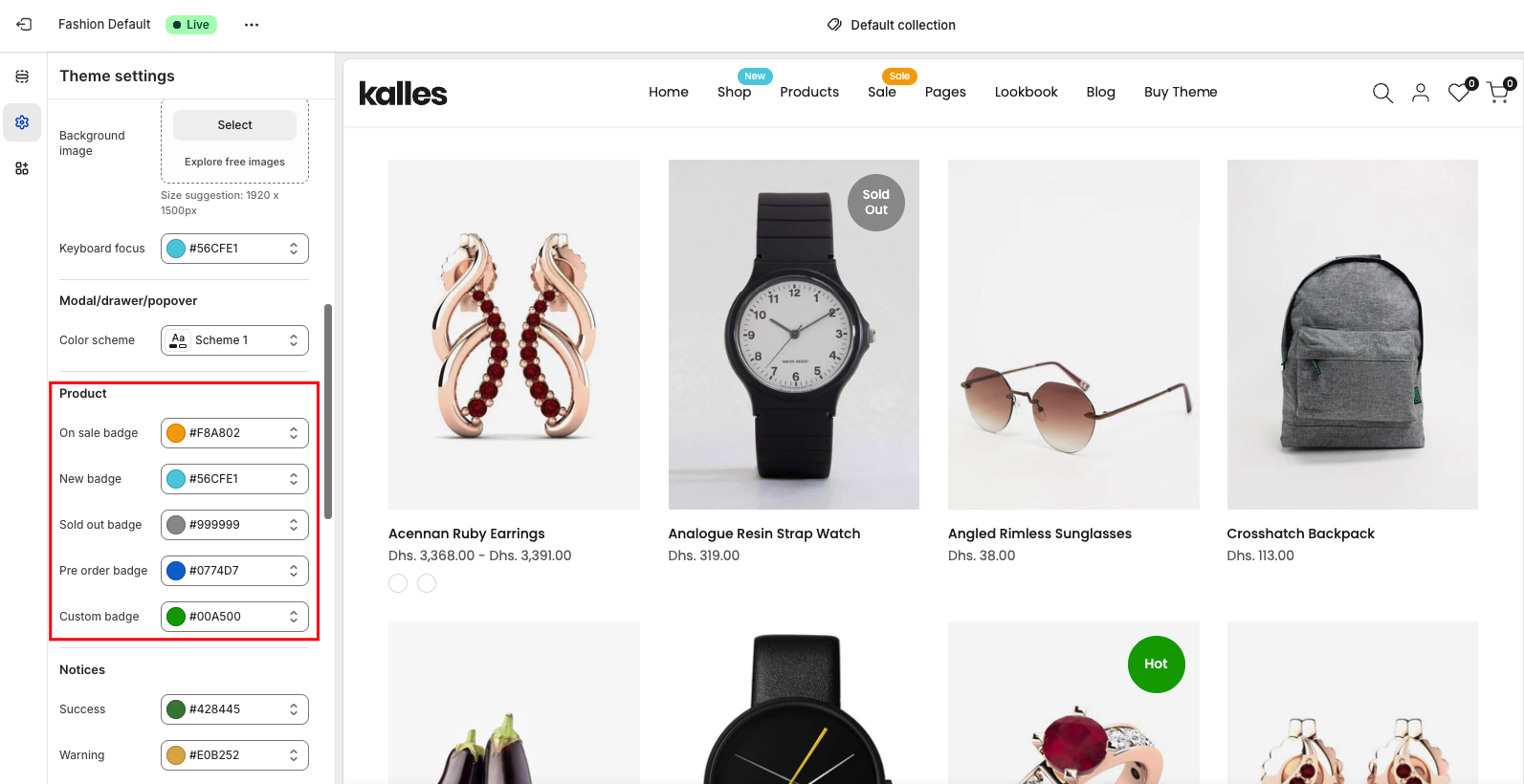
The colors for badges (like New, Sold out, etc.) can be changed in Theme settings > Colors.
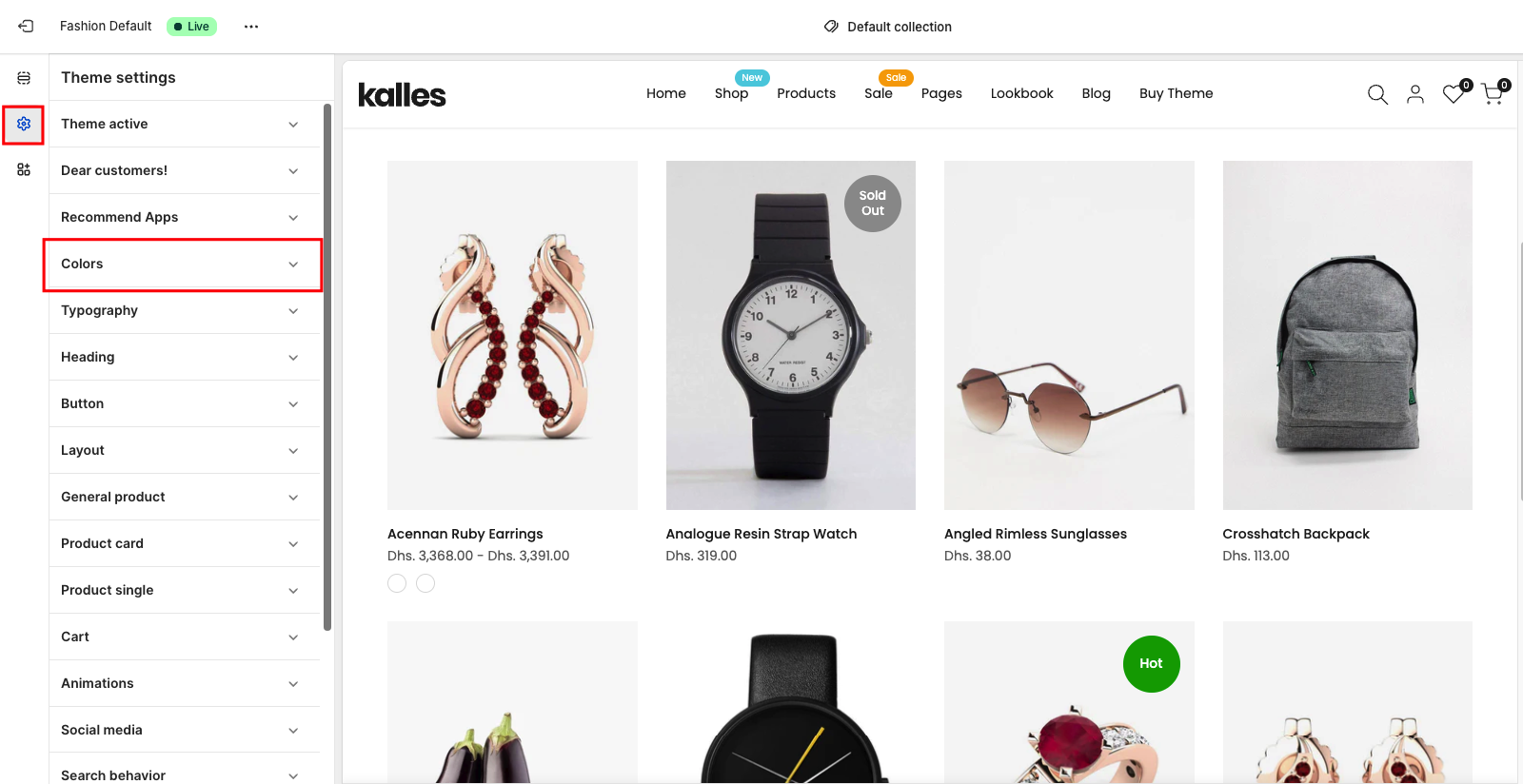
You will scroll down a bit to see the product part. Color for badges will be changed here.