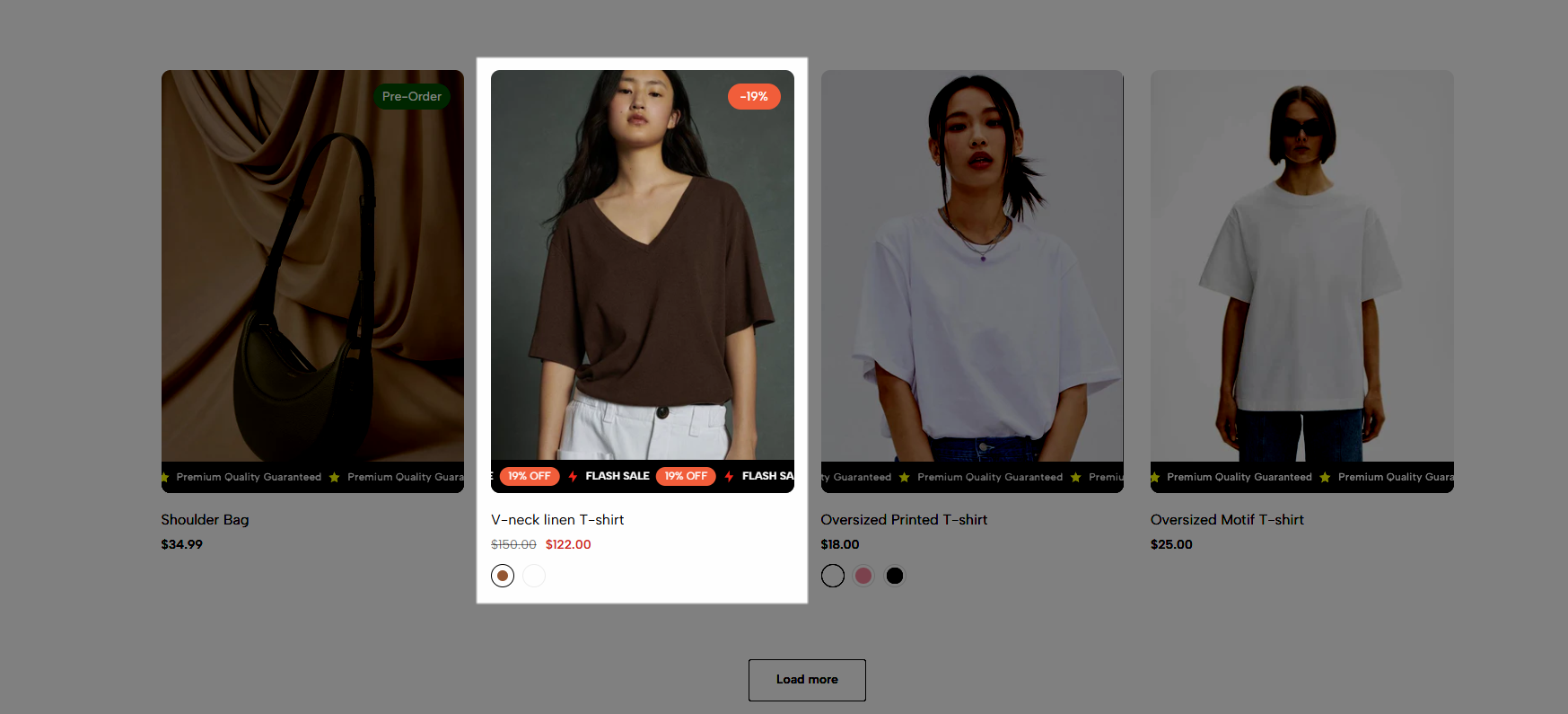
How to configure Scrolling badge?
1 min read
On this page
This feature is available on Kalles 5, Ecomus 1.9.2 or higher
Want to grab your customers' attention right on your product listing? Scrolling Badge displays eye-catching badges (discounts, certificates, promotions, etc.) right below each product with a smooth scrolling effect.
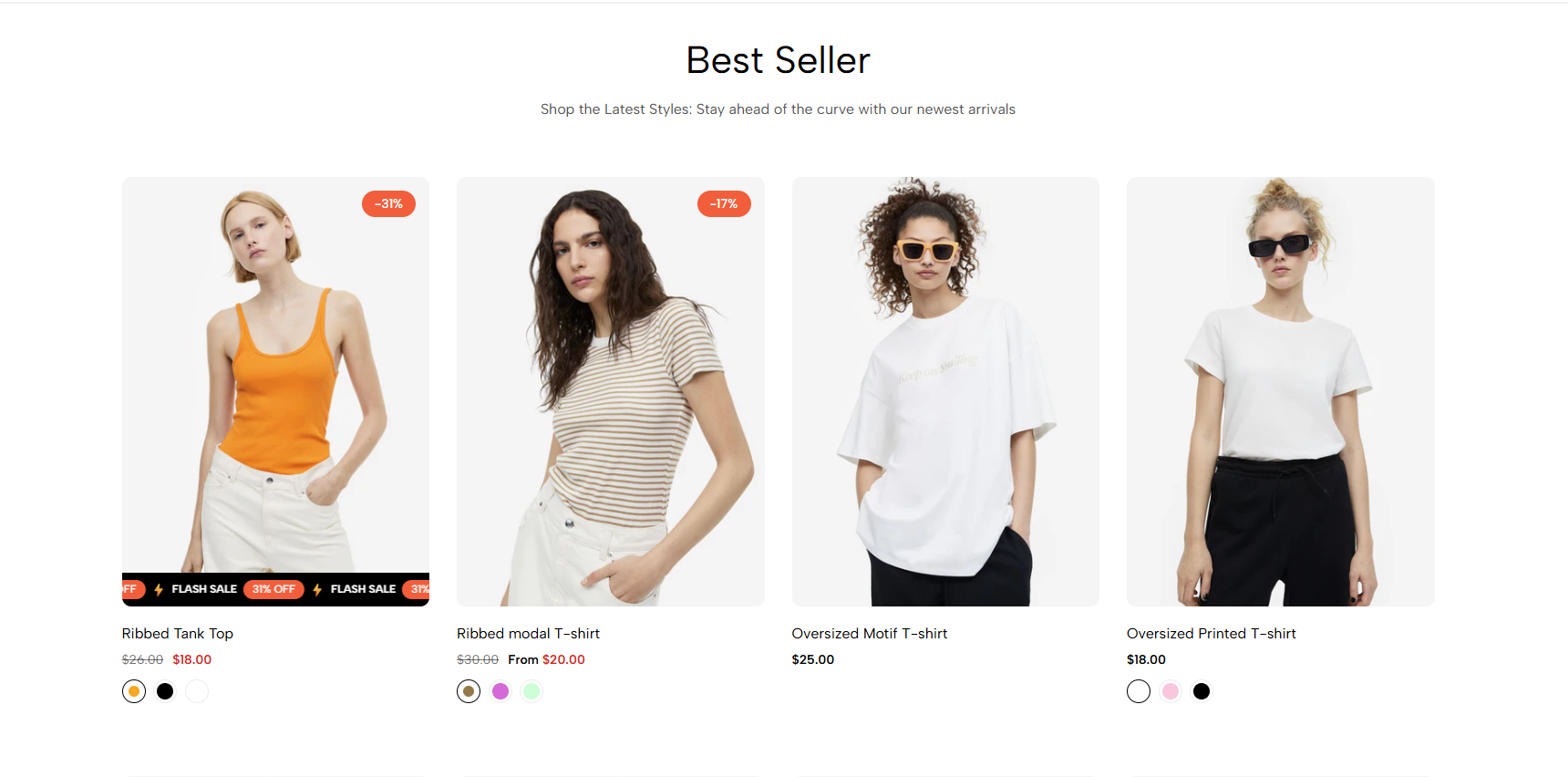
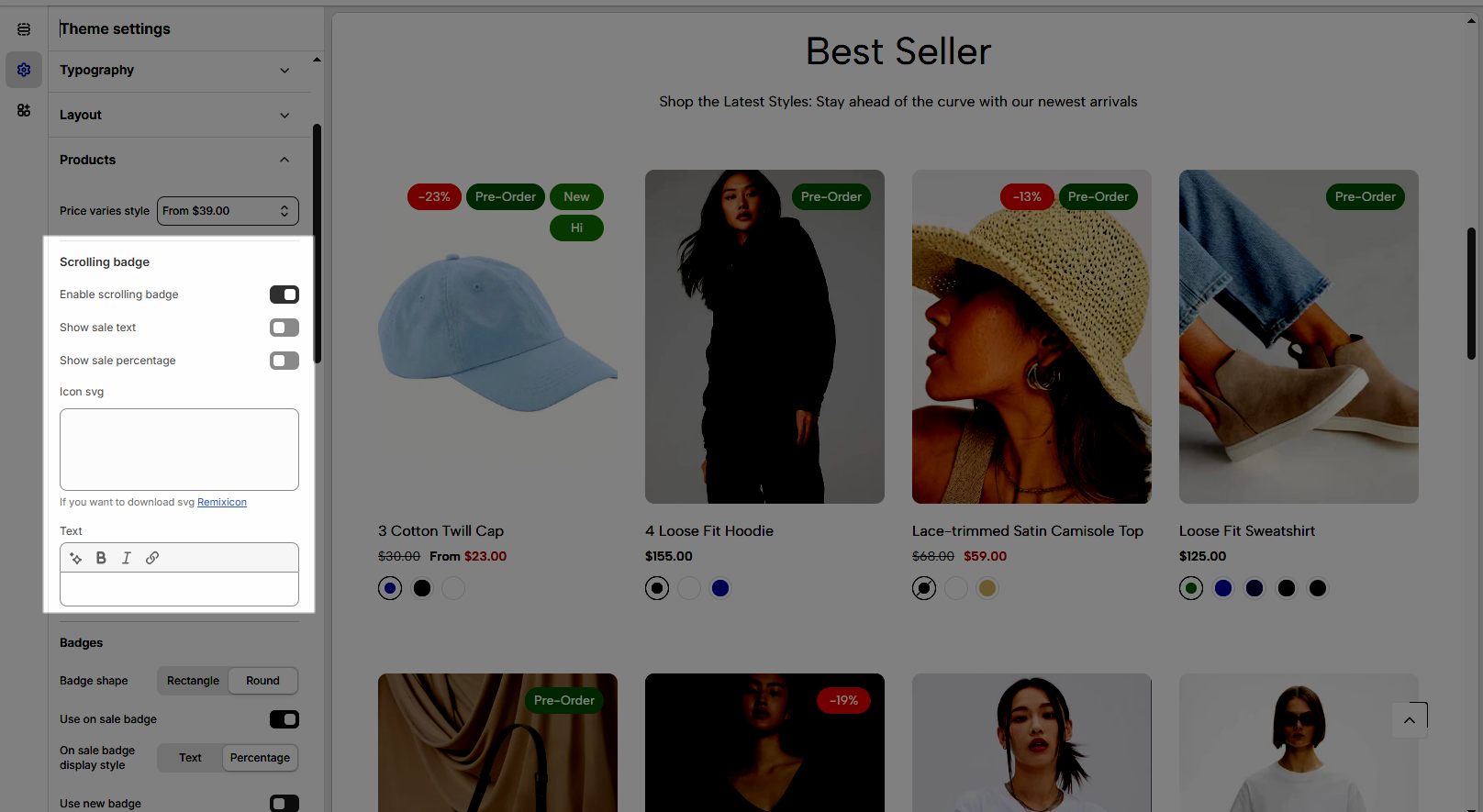
On Ecomus, to use scrolling badges, please enable scrolling badges in Theme settings > Products.
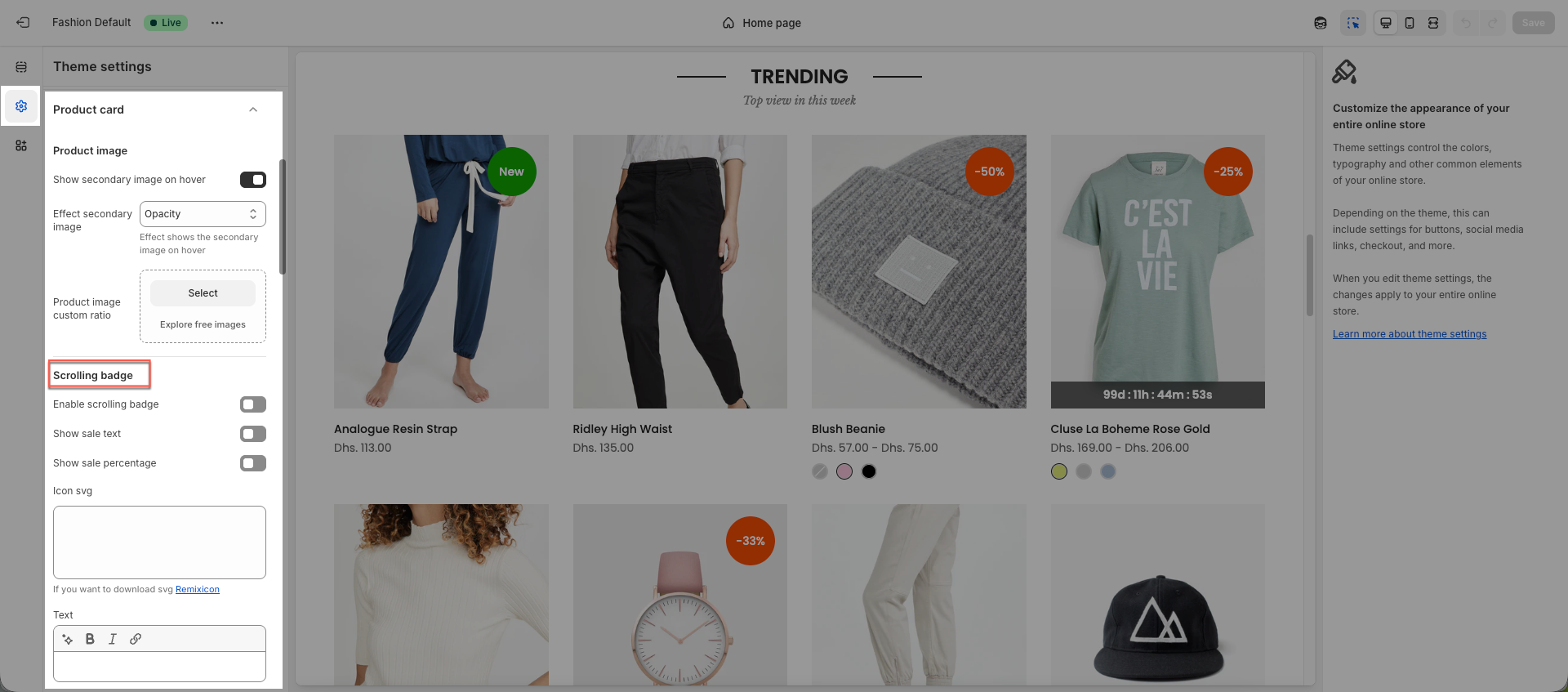
On Kalles, to use scrolling badges, please enable scrolling badges in Theme settings > Product card.
You can add Scrolling Badge to all products or just select specific products as you want.
1. Add Scrolling Badge to all products
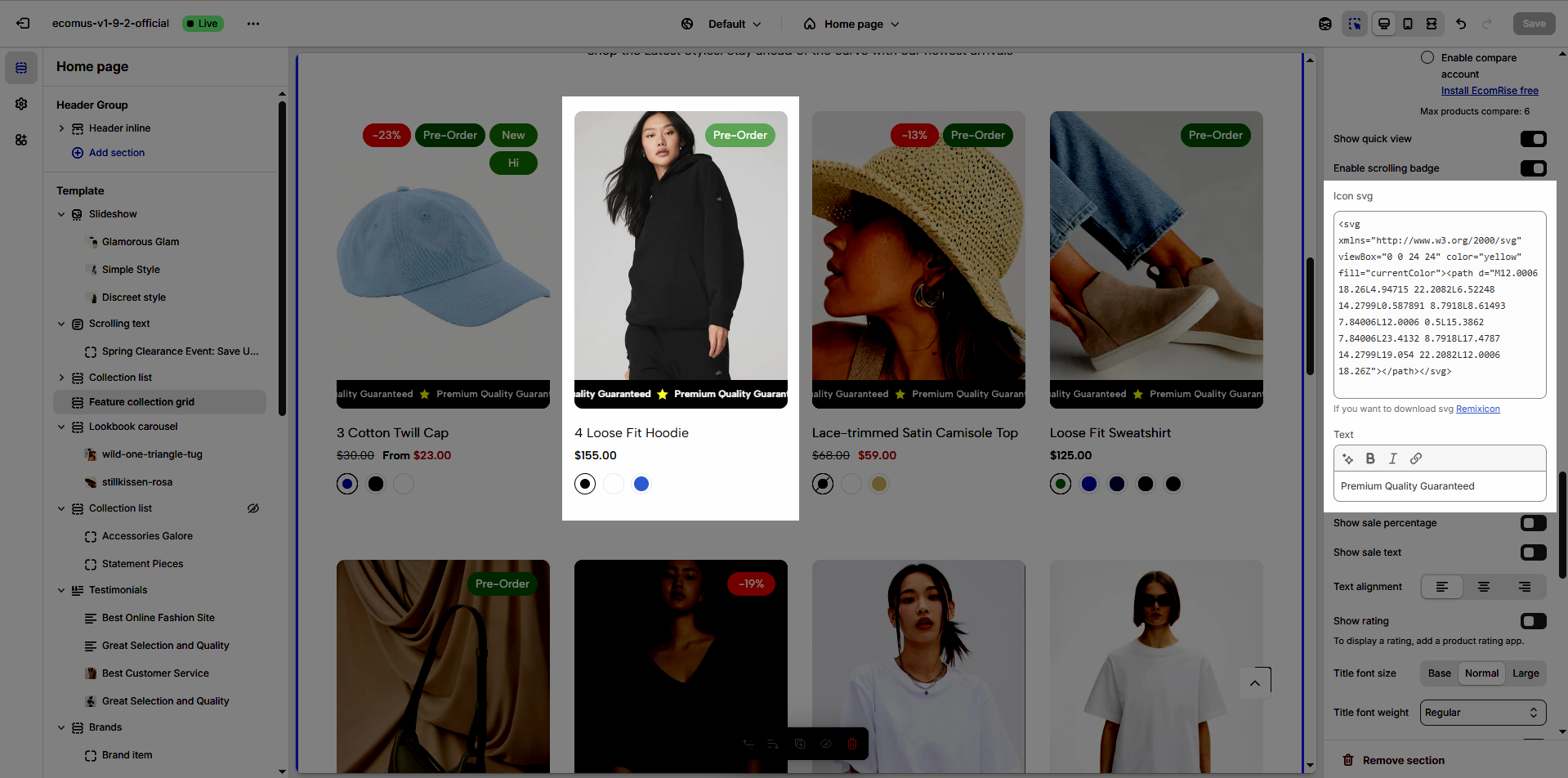
You can add Icon svg & Text
Icon svg: use Remixicon to make it more attractive and eye-catching
Text: use text to promote a promotion or emphasize the benefits of your product.
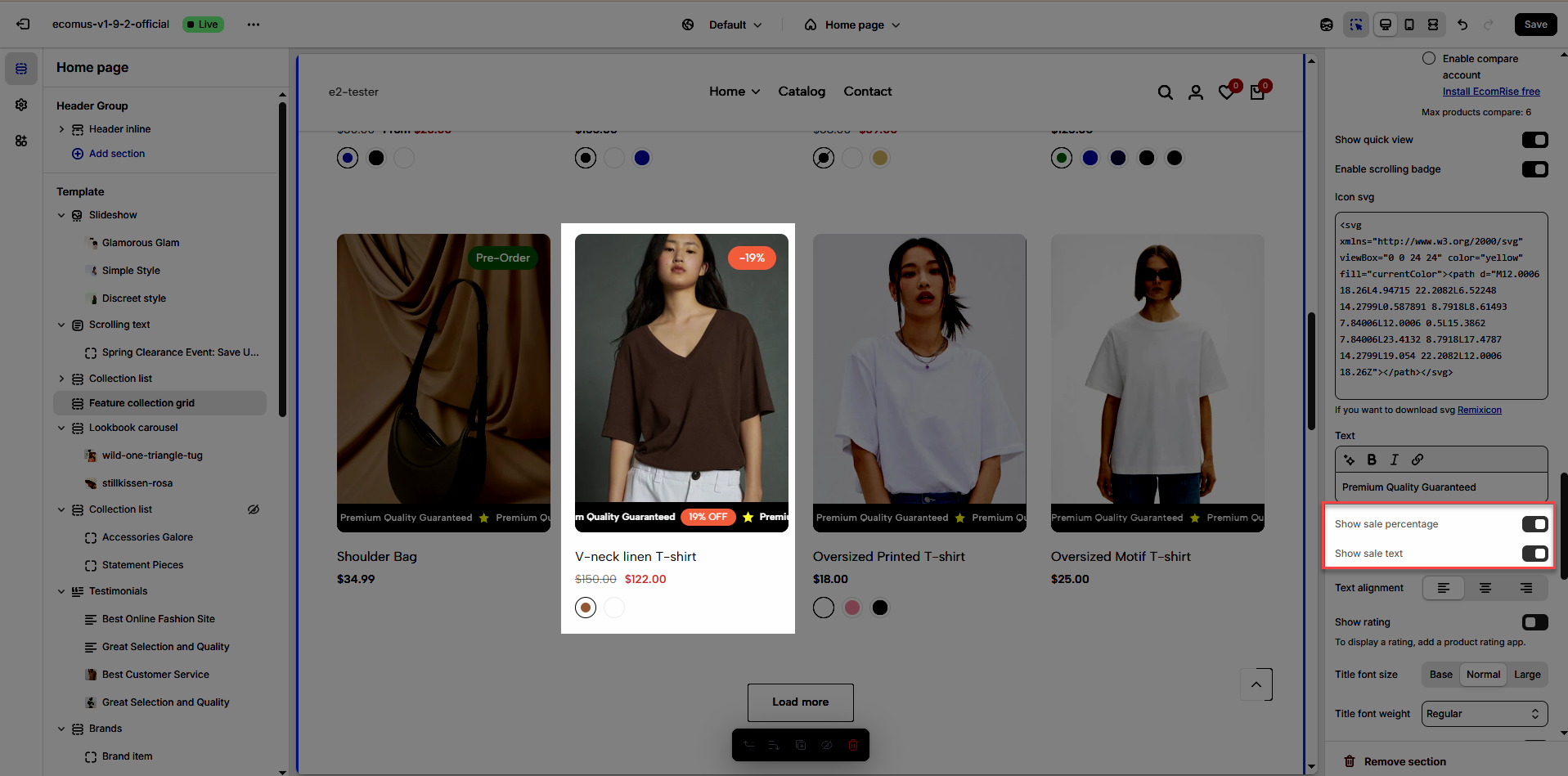
You can also enable sales badges in Percentage or Text format.
Sale percentage will be given priority.
2. Add Scrolling badges to specific products
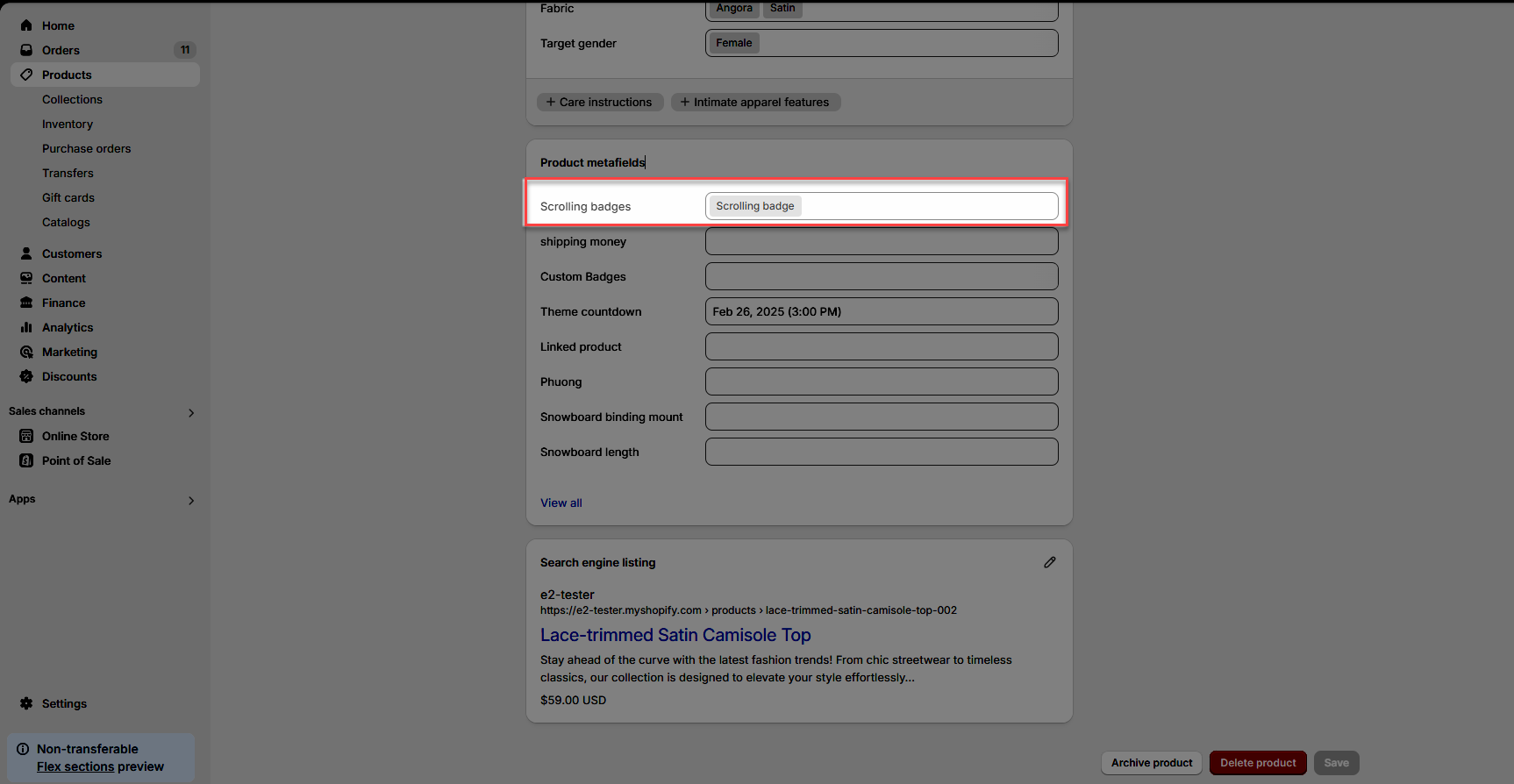
Prioritize getting data from product metafields then settings
2.1. Create metafield
Watch our video below...
2.2. Add entry & add metafield to product
- Add entry
- Add metafield to product
Result: